


Word Reader - Docx/PDF Viewer
4.32.00 Reviews
App Specs
- Version
- 1.4.1
- Updated On
- License
- Free
- Downloads
- 10,000+
- Developer
- Eternal Mobile Labs
- Categories
- Business
- Platform
- Android
Screenshots
 Analysis by AppCompare
I reach for a phone document reader when I need to check a file quickly, not when I’m ready to do a full day’s work on a tiny screen. That’s the lens I’d use for Word Reader - Docx/PDF Viewer: it brings several office-document tasks into one app, which can be handy when the file you need arrives at an inconvenient moment. The important question is whether that convenience matches your routine, especially once paid options enter the picture.
What the free access is worth
The app is free to install, so you can try it without paying upfront. It also offers in-app purchases priced from $2.99 to $89.99 per item. That is a wide range, and I would not treat the highest possible purchase as a necessary cost of opening documents. Before buying anything, I’d check what the specific offer unlocks and whether it solves a problem I actually have.
That distinction matters because a free document viewer can already be enough for occasional reading. If you only open a form now and then, paying for an upgrade may not make sense. If you regularly need the app’s scanning or editing tools, a purchase could be more relevant, but I’d make that decision only after trying the free experience and checking the terms shown in the app.
Where the value comes from
The appeal is less about replacing a computer and more about reducing small interruptions. A document arrives while I’m away from my desk; I need to confirm a date, locate a clause, or read a few pages before replying. Having Word, DOCX, and Office-file reading alongside PDF tools gives me a single place to start rather than making me guess which app will open the attachment.
The developer is Eternal Mobile Labs, and the app sits in the business category. Its 4.3 average comes from around three dozen ratings, while it has over ten thousand installs. Those figures offer some context about its reach, but they don’t tell me whether every format will behave perfectly with every file. For an important document, I’d still check the layout before relying on it.
A practical file-checking routine
For a workday example, imagine a colleague sends a DOCX agenda shortly before a meeting. I’d open it on the phone, search for the item I’m responsible for, and use the viewer to confirm the wording. If I later receive a PDF version, the same app gives me a place to inspect that copy too. This is a useful handoff workflow: the phone helps me read and locate information, while a desktop editor remains the safer choice for substantial rewriting.
A small but useful habit is to search for a distinctive word or phrase rather than scrolling page by page. That is most helpful when a document is long and I remember the topic but not its page. I’d also use bookmarks for sections I expect to revisit, such as a policy paragraph or a meeting agenda item. Those shortcuts work best when I create them while reading, rather than expecting to remember where I stopped later.
Worth Reading Before You Choose

EA SPORTS FC Mobile 26 Is a Bigger Football Game, but It Takes Time

Flipboard Shows What News Apps Must Do Beyond the Feed

Switching to Android Auto Means Rethinking Your Driving Routine

Google Calendar Makes a Crowded Week Easier to Manage

Ludo King Makes the Most of the Minutes Between Plans

Baby Panda World Brings Quick Play to Modern Phones, but Its Game Library Feels Busy
Scanning and editing need a closer look
The app’s positioning includes an AI scanner and PDF editing, which could make it useful for more than passive reading. I’d consider scanning a paper receipt or a signed page when I need a digital copy, then checking the resulting file carefully before sharing it. With any scan, readability depends on the source page and capture conditions; a shadow, skewed angle, or faint print can turn a convenient shortcut into another task.
PDF editing is a separate reason to try the app, but I would distinguish quick adjustments from careful document production. If I need to make a small change on the move, an in-app editor may save time. If the file is a contract, a form with strict formatting, or a document that must be finalized precisely, I’d review every page afterward and use a full desktop workflow if the change is substantial.
How it compares with familiar alternatives
The usual alternatives are the office suite already on your phone, a dedicated PDF reader, or opening the file on a computer. A preinstalled viewer can be the simplest option if it opens your documents reliably and you only need to read them. A dedicated PDF app may be a better fit if almost everything you handle is PDF and its annotation or page-management tools match your needs. A desktop office program remains more comfortable for long edits, complex spreadsheets, and layout-sensitive work.
This app makes most sense in the middle: someone who encounters several office document types and wants a mobile starting point, with scanning and PDF editing also in the mix. It is not automatically better than an app you already know. I’d compare the actual file-opening and editing steps that matter to me, rather than choosing based on a long feature list. If a particular file contains intricate tables, embedded elements, or unusual formatting, I’d verify the result instead of assuming the phone view is identical to the original.
Who is likely to get value
I can see it suiting students checking readings and handouts, office workers reviewing attachments between appointments, and anyone who occasionally needs to inspect a Word or PDF file away from a desk. It is especially practical when the main task is finding information, reading a page, or keeping a few sections easy to return to. The age rating is Everyone, and the current version is 1.4.1; the app was released on March 20, 2026.
I’d skip it if you mainly need advanced editing, dependable collaboration, or a full replacement for a desktop office suite. It may also be unnecessary if your phone’s built-in tools already open the formats you use and you rarely need scanning or PDF changes. For someone who wants to make a careful purchase decision, the sensible approach is to start free, test a typical document from their own workflow, and only consider an in-app purchase when its specific benefit is clear.
Getting Started with Word Reader
First things first, downloading Word Reader - Docx/PDF Viewer is as easy as pie. Just head over to the Play Store or App Store, hit download, and you’re ready to roll. The installation is quick, and before you know it, you’re navigating through a sleek and intuitive interface.
Interface and User Experience
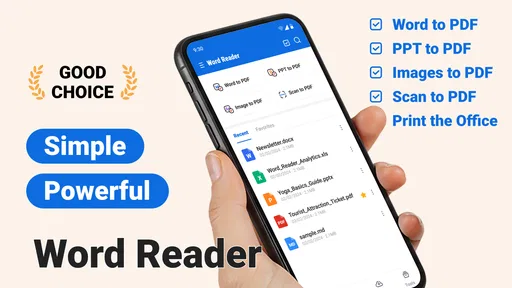
The app greets you with a clean interface that screams simplicity. No clutter, just what you need when you need it. I’ve tried a fair share of document viewers, and this one stands out for its user-friendly design. Everything is neatly categorized, making document navigation a breeze.
Whether you’re opening a PDF or a Docx, the transition is seamless. The app doesn’t just open your files; it respects the formatting, which is critical when you’re dealing with professional documents. You won’t have to worry about weird line breaks or image misplacements.
Features That Make Life Easier
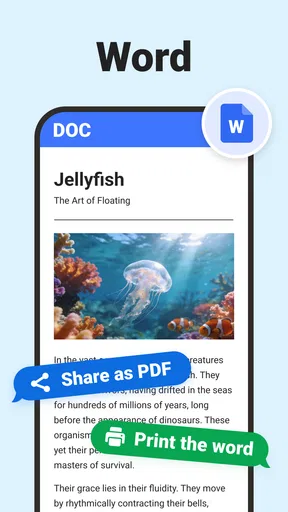
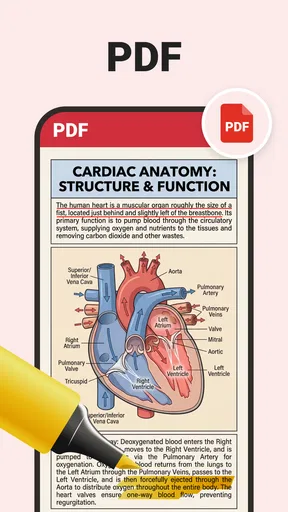
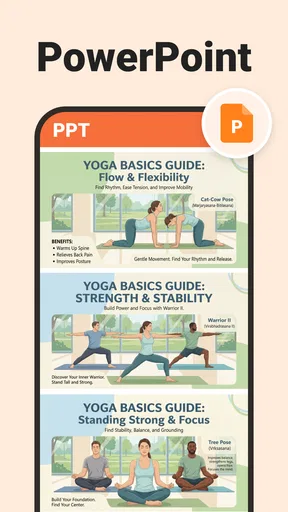
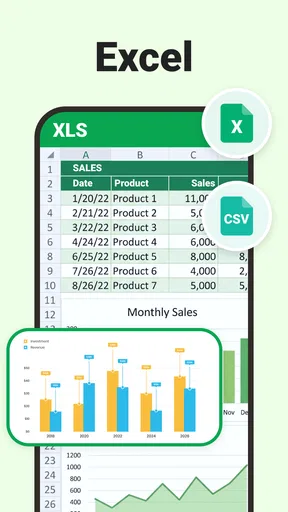
One of the standout features is the app’s ability to handle multiple file formats. You’ve got PDFs, Docx, Excel files, you name it. It’s like having a Swiss Army knife for document viewing right in your pocket.
Not to mention, the search function is a lifesaver. Need to find a specific section in that lengthy PDF? Just type in a keyword, and voilà, you’re there. It’s precise and saves a ton of time.
Performance and Reliability
No one likes an app that crashes, especially when you’re in the middle of something important. Luckily, Word Reader - Docx/PDF Viewer shows up with top-notch performance. It’s fast, reliable, and doesn’t hog your phone’s resources.
Even large files open smoothly, which is impressive. I’ve yet to experience any lag or crashes, even with documents packed with graphics and charts. It’s like having a mini office on your phone, ready to go whenever you are.
Additional Perks
Let’s talk about the little things that bring joy. The app offers night mode, which is perfect for late-night reading. It’s easy on the eyes and helps prevent that dreaded strain.
Another cool feature is the ability to bookmark pages. It’s a simple touch, but if you’re like me and often need quick access to specific sections, it’s invaluable. The bookmarks are easy to set and manage, adding to the app's overall efficiency.
Why It’s Worth Your Time
In a world where efficiency is king, having a reliable document viewer is essential. Word Reader - Docx/PDF Viewer ticks all the boxes. It’s straightforward, powerful, and designed with the user in mind.
Whether you’re a student, professional, or just someone who deals with a lot of documents, this app is a must-have. It’s not just about opening files; it’s about enhancing your workflow and making your life a tad bit easier.
So, if you’re still on the fence, give it a whirl. It might just become one of your go-to apps on your phone. Happy reading!
Pros
- Smooth interface with fast loading times.
- Supports multiple file formats seamlessly.
- Offline access enhances usability on the go.
- Easy file organization with folder creation.
- Integrated search for quick document location.
Cons
- Ads can be intrusive during file reading.
- Limited editing features compared to competitors.
- Occasional glitches with large files.
- Requires frequent updates for optimal performance.
- No cloud storage integration available.
FAQs for Word Reader - Docx/PDF Viewer
What file formats does Word Reader - Docx/PDF Viewer support?
Word Reader - Docx/PDF Viewer primarily supports DOCX and PDF files, allowing users to seamlessly view and read documents created in these formats. Additionally, it may also support other common file types such as TXT, RTF, and ODT, providing flexibility for users who work with various document types.
Is an internet connection required to use Word Reader - Docx/PDF Viewer?
No, Word Reader - Docx/PDF Viewer does not require an internet connection for basic document viewing. You can access and read documents offline once they are downloaded onto your device. However, certain features like cloud storage access or updates may require an internet connection.
Can I edit documents using Word Reader - Docx/PDF Viewer?
Word Reader - Docx/PDF Viewer is primarily designed for viewing and reading documents, not for editing. While it provides a user-friendly interface for reading, users looking to make edits to their documents will need to use a dedicated word processor or editing application.
Does Word Reader - Docx/PDF Viewer offer any customization options for reading?
Yes, the app typically includes several customization options to enhance the reading experience. Users can adjust the font size, switch between different viewing modes, and use night mode for comfortable reading in low-light conditions. These options help tailor the reading experience to individual preferences.
Is Word Reader - Docx/PDF Viewer compatible with both Android and iOS devices?
Yes, Word Reader - Docx/PDF Viewer is available for both Android and iOS platforms, making it accessible to a wide range of users. The app is designed to function smoothly on various devices, providing a consistent and reliable experience whether you're using a smartphone or tablet.


